Cloud backup
How to connect a cloud provider (Dropbox, Google Drive, or iCloud) and what "end-to-end encrypted" means in practice.
How Mētra backup works
Your data never leaves your device unless you decide it should. Local-first is not a feature toggle, it is the default state. Backup is an option, not an expectation.
When you enable it, Mētra encrypts your entire database on your device before uploading it. Whichever provider you choose only ever receives a blob it cannot read. No one else has access to your data, including the people who wrote the code.
⚠️ There is no passphrase reset. The encryption key is derived from your passphrase and lives only on your device — not on any server, not in the cloud. If you lose the passphrase, the backup cannot be recovered. Keep it somewhere safe, separate from your phone (e.g. a password manager).
Choosing a cloud provider
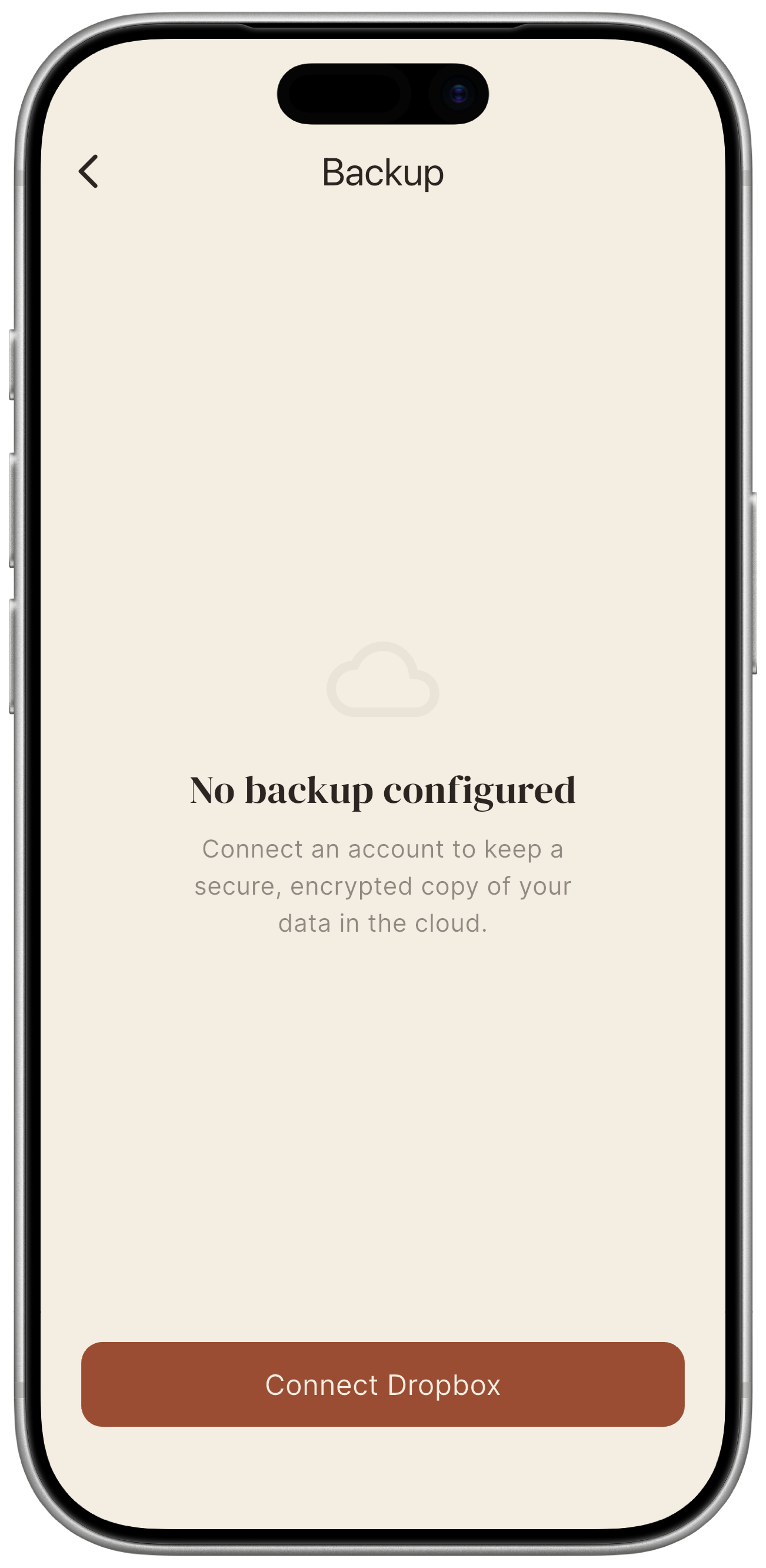
Mētra supports three providers. Only one can be active at a time, and only the ones available on your platform are offered:
| Provider | Available on |
|---|---|
| Dropbox | Android and iOS |
| Google Drive | Android only |
| iCloud | iOS only |
To connect:
- Go to Settings → Cloud backup.
- Tap Connect. A wheel picker opens showing the provider(s) available on your device.
- Scroll to the provider you want and confirm.
- For Dropbox and Google Drive, your browser opens the provider’s login page — authorise the connection there and you’re returned to Mētra. For iCloud there is no login page: Mētra simply verifies it can access your iCloud account.
Mētra requests the minimum permissions for each provider: only access to a dedicated app folder (Dropbox, Google Drive), never your full cloud storage. iCloud access is scoped to Mētra’s own app container.
Creating a backup
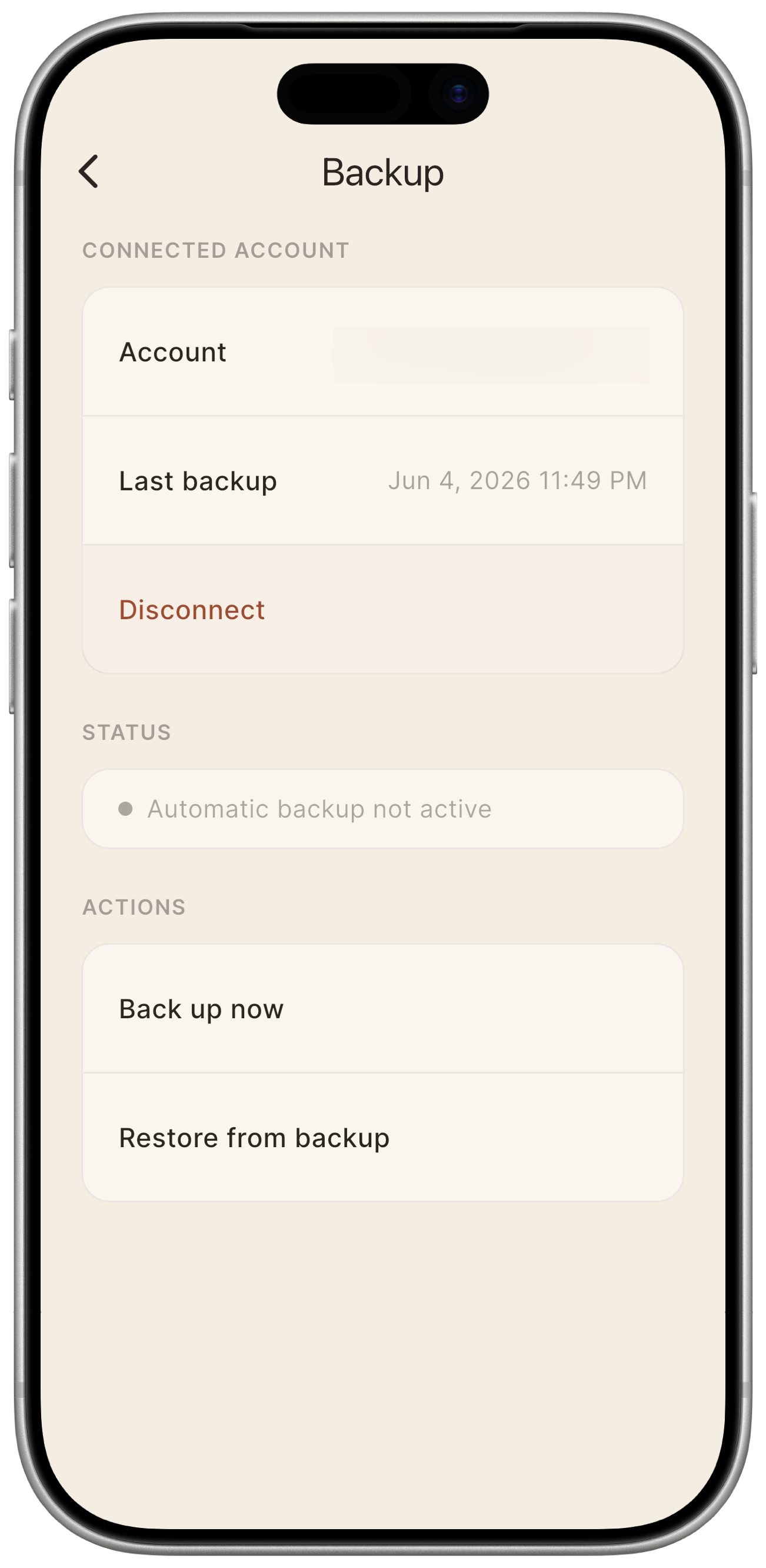
The connected screen shows the account email for Dropbox and Google Drive. iCloud has no account email to show — Mētra just confirms the container is reachable, so that row is omitted rather than left blank.
Once connected:
- Tap Back up now.
- On your first backup, Mētra asks you to set a passphrase. This passphrase is stored securely on your device (iOS Keychain / Android Keystore) and reused automatically for all subsequent backups — you will not be prompted again unless you disconnect and reconnect.
- Mētra encrypts the database on your device and uploads it. A progress indicator shows the status.
- When complete, the screen displays the date and time of the last successful backup.
On the passphrase: there is no recovery option, because there is no server that could perform one. Choose a passphrase you will remember and store it separately from your phone.
After the initial backup, Mētra will perform periodic backups automatically.
Mētra automatically keeps the 3 most recent encrypted backups in the cloud folder; older blobs are pruned after each successful upload. No user-tunable setting — local-first / respect-the-adult-user posture.
Switching providers
Changed your mind, or moving between an Android and an iOS device? From the connected screen, tap Change provider. The same wheel picker opens; pick a different one and confirm in the dialog.
- Your passphrase is reused — you will not be asked to set a new one.
- The backups already sitting with the previous provider are left in place, untouched. If you want them gone, remove them yourself (see Disconnecting the provider).
- The new provider goes through the same connect flow described above.
What is backed up
The backup contains:
- All daily logs (flow, pain, symptoms, notes).
App settings (theme, language, notifications, cycle-length baseline) are not included. After restoring, you will need to re-configure those preferences.
It does not include local notification schedule state: those are re-created automatically after a restore.
Restoring from a backup
- Install Mētra on the new device (or after a factory reset).
- Complete the onboarding flow, the baseline numbers do not matter, they will be overwritten by the restore.
- Go to Settings → Cloud backup.
- Connect the provider you backed up to previously (or pick a different one from the picker if you’re restoring from elsewhere). If backups are found, Mētra will indicate it and show when the most recent one was created.
- Tap Restore from backup and confirm in the warning dialog that current data will be replaced.
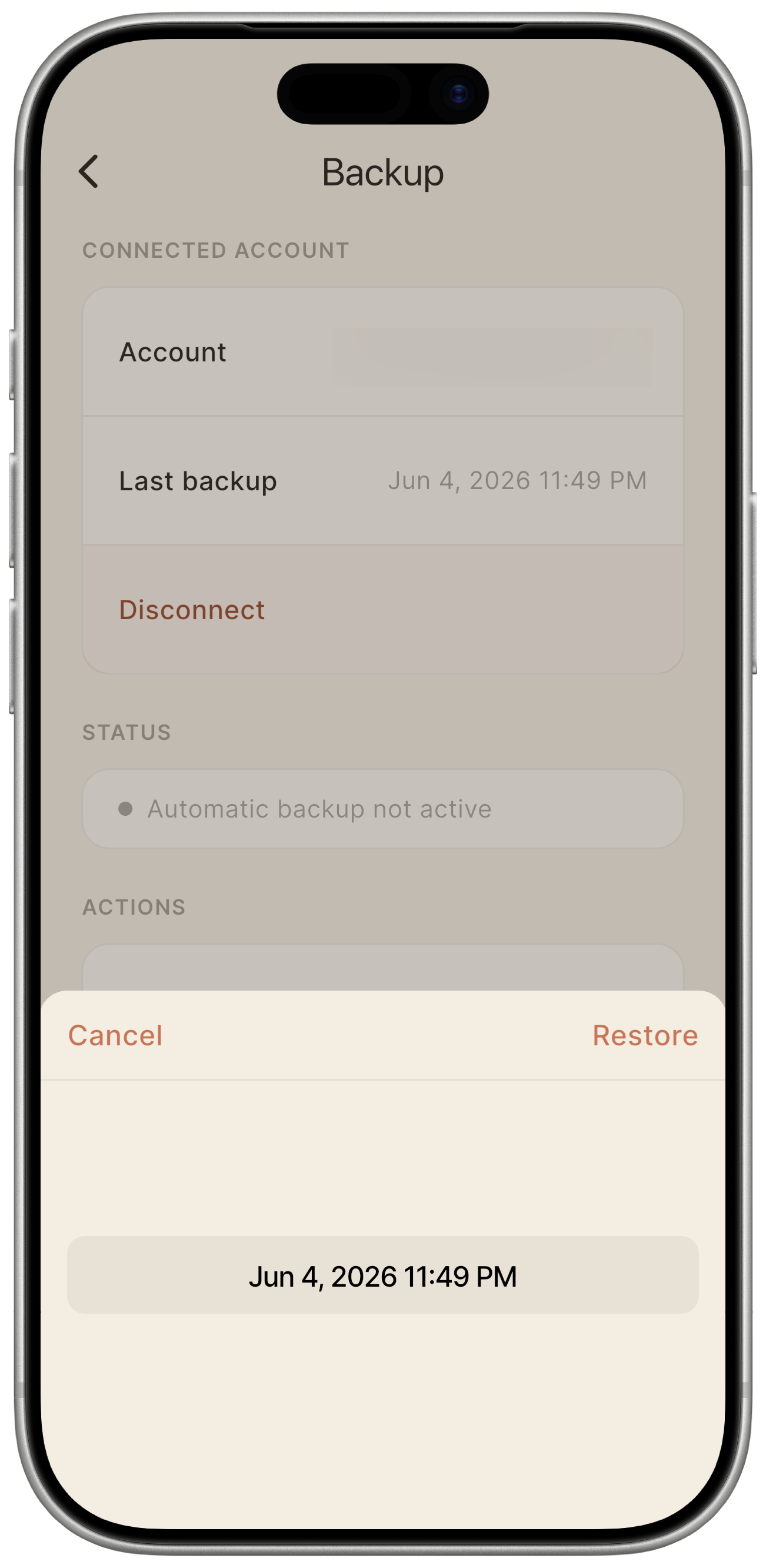
- A picker sheet appears: scroll the wheel to select the backup version you want. Each entry shows date and time (up to 3 backups available, newest at the top).
- Tap Restore to confirm, or Cancel to go back.
- Enter your passphrase. Mētra downloads the chosen backup, decrypts it, and replaces the local database.
⚠️ Warning: Restoring overwrites all data currently on the device. This action cannot be undone.
Disconnecting the provider
Tap Disconnect in the backup screen to unlink the cloud account. The backup files already on the cloud are not deleted — you must delete them manually: from the Dropbox or Google Drive app or website, or from iCloud settings, depending on which provider you were connected to.
Mētra retains up to the 3 most recent encrypted backups in the app folder, for whichever provider is active.
Technical security details
- Encryption algorithm: AES-256-GCM.
- Key derivation: Argon2id from your passphrase.
- The derived encryption key is never stored anywhere — not in the cloud, not on the device. It is computed from your passphrase on demand, used, then discarded. Your passphrase itself is stored in the device’s secure hardware storage (iOS Keychain / Android Keystore) so that subsequent backups can run without prompting you, and is shared across providers if you switch.
- Dropbox and Google Drive connections use OAuth; the access tokens live in the same secure hardware storage as the passphrase. iCloud uses no OAuth and no tokens — Mētra reaches it through your device’s own iCloud account.
- The backup file has a
.encextension and is stored in a dedicated Mētra folder inside your cloud account.
These are not marketing claims: they are specific choices in the code. You can verify them in lib/data/services/encryption_service.dart.