Logging a day
How to record flow, pain, symptoms, and notes; and how to edit a past day.
You can log or edit any present or past day from the Calendar, using the Add day button, or Edit day if there is already a record for that day.
Today’s entry
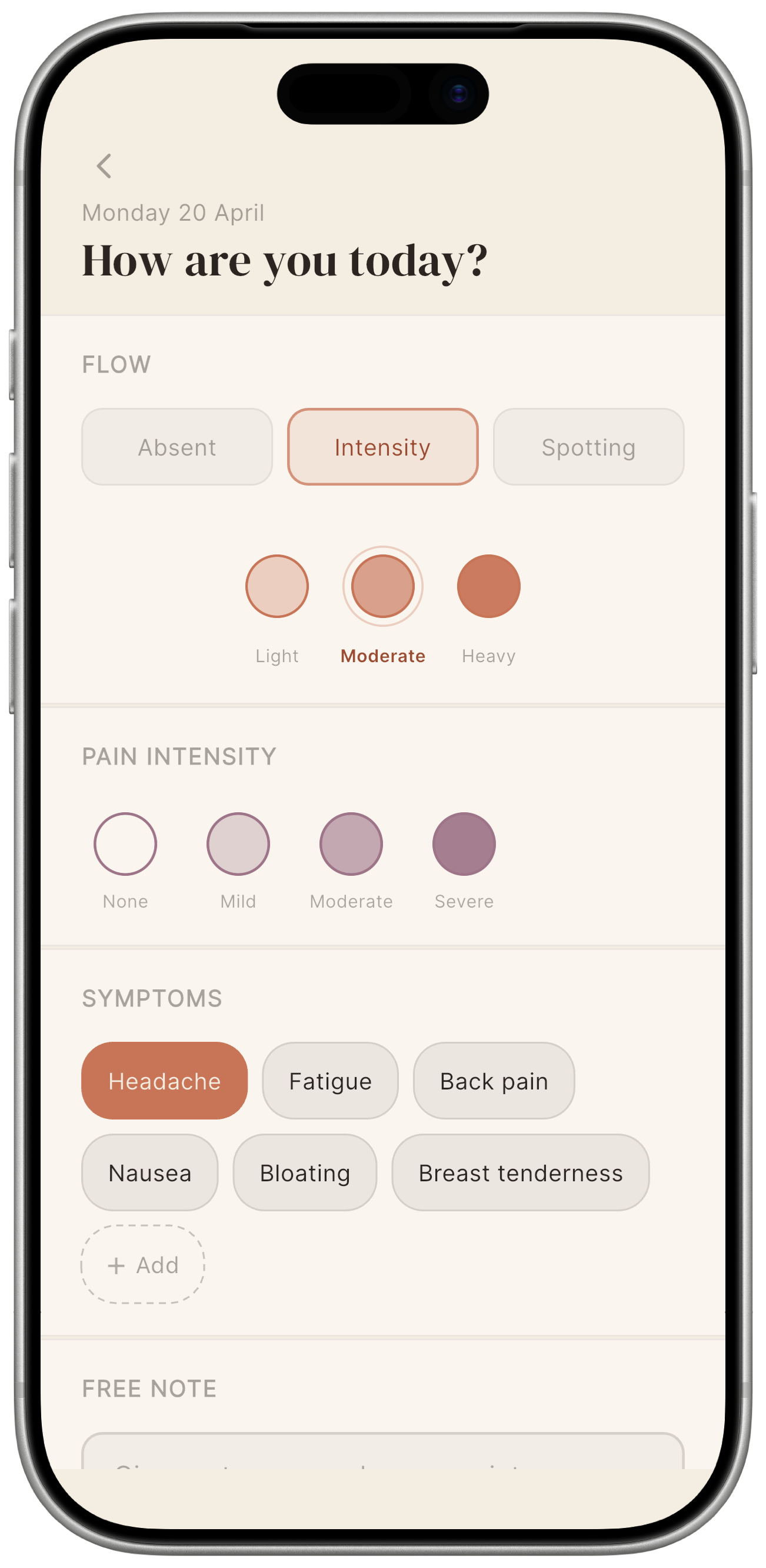
The Today screen shows the current date and four sections. What you fill in is your choice: every field is optional.
1. Flow
Flow type
Choose one of three options:
| Chip | Meaning |
|---|---|
| Absent | You have confirmed there is no bleeding today. |
| Intensity | Active menstrual flow. |
| Spotting | Light, irregular spotting outside your regular period. |
If you do not tap any chip, the day is saved as “not logged”, which is not the same as explicitly marking it absent. The distinction matters for statistics.
Flow intensity
When Intensity is selected, three terracotta circle indicators appear:
| Circle | Level |
|---|---|
| 1st circle | Light |
| 2nd circle | Moderate |
| 3rd circle | Heavy |
Moderate is pre-selected by default, so if you have no interest in tracking intensity detail, you can skip the selection. Tapping the already-selected circle deselects it.
2. Pain intensity
The Pain intensity section shows four circles in a row, each with increasing fill. Tap the one that matches how you feel:
| Circle | Level | Note |
|---|---|---|
| None | Transparent fill | Explicitly records no pain for the day. |
| Mild | ~28% fill | Mild discomfort; daily activities are not affected. |
| Moderate | ~60% fill | Pain that limits some activities. |
| Severe | ~92% fill | Intense pain, difficult to manage. |
Tapping the already-selected circle deselects it — no pain data saved for that day. Choosing None is a different action: it actively records that pain was absent.
3. Symptoms
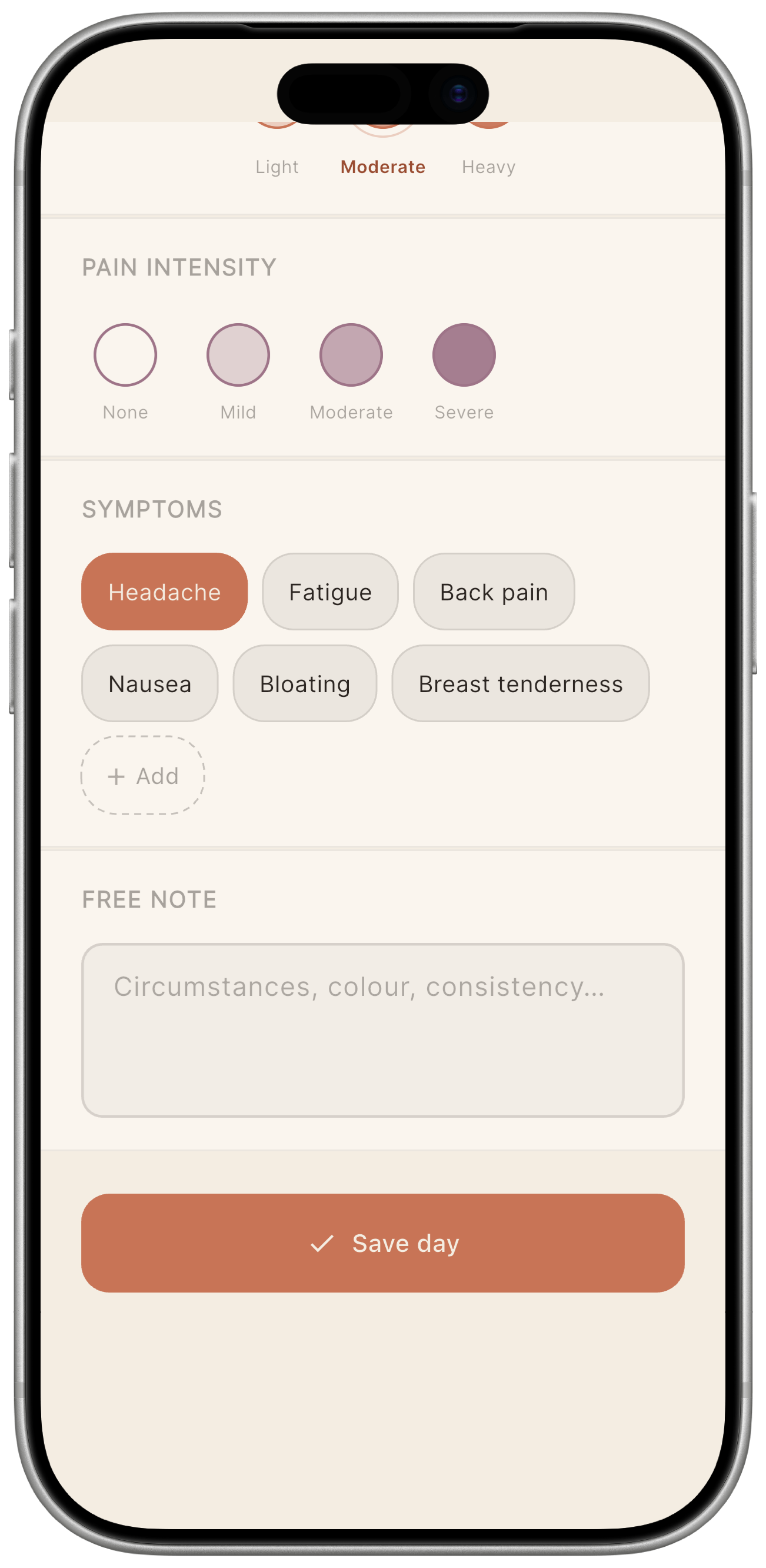
A row of tappable chips. Tap to toggle a symptom on or off. Available symptoms:
- Headache
- Fatigue
- Back pain
- Nausea
- Bloating
- Breast tenderness
- Custom — tap the dashed Add chip to type your own label.
You can select multiple symptoms at the same time. Custom labels are saved with that entry and do not reappear automatically on future entries. To remove a custom label, tap it again, the chip disappears from the list. Emoji are welcome too.
4. Free note
A free-text area. What you write stays on your device: Mētra stores it and nothing else: no analysis, no reading.
Saving the entry
Tap Save day at the bottom of the screen. The calendar and statistics update immediately.
Editing a past day
- Open the Calendar tab.
- Tap the day you want to edit.
- In the day detail panel, tap Edit day.
- The entry form opens, pre-filled with the existing data.
- Make your changes and tap Save day.
You can edit any past day, there is no lock-out period. Editing a day that previously marked the start of a cycle will trigger an automatic recalculation of predictions.
Deleting an entry
To remove all data for a day, open its edit screen, tap the trash icon in the top-right corner. You will be asked to confirm before the deletion takes effect.