Settings
Language, theme, notifications, log fields, data. What each control in the Settings tab does.
The Settings tab is where you shape the app to fit your habits: choose the language, decide which fields appear in your daily log, set whether and when a reminder fires. Several choices here are also privacy decisions: where your data goes, in what format, with what access. Changes save automatically, with no confirm button.
Preferences
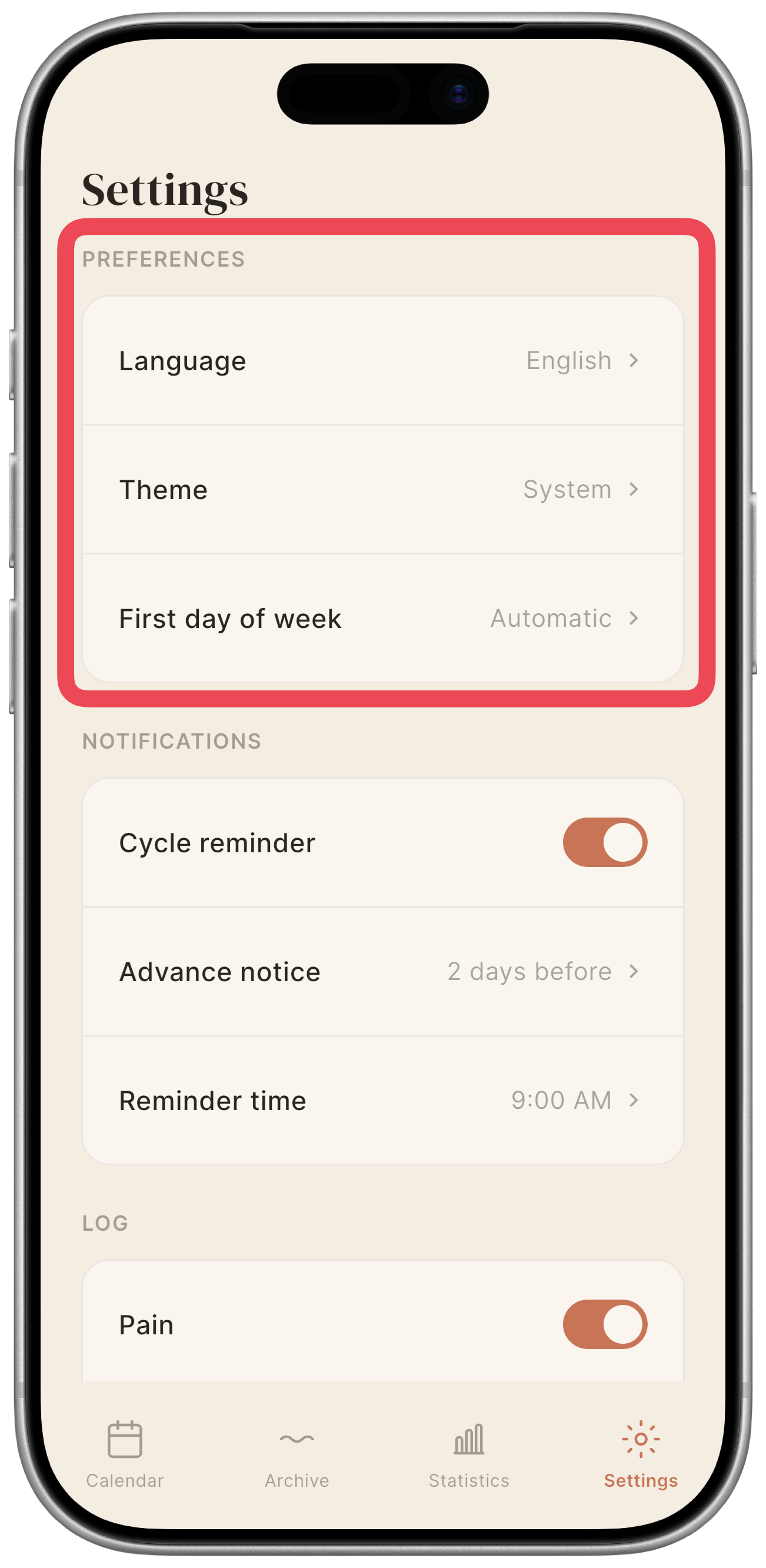
Appearance and language: three settings that determine how Mētra looks every time you open it.
| Control | Options | Default |
|---|---|---|
| Language | Automatic · Italian · English | Automatic (follows the OS) |
| Theme | System · Light · Dark | System (follows the OS) |
| First day of week | Automatic · Sunday · Monday | Automatic (follows the OS) |
First day of week changes the column-header order in the Calendar grid: the grid reorders the moment you change this. Set to Sunday and the grid starts on S; Monday and it starts on M; Automatic and Mētra uses the device’s system locale preference. See Calendar for details on the grid layout.
Notifications
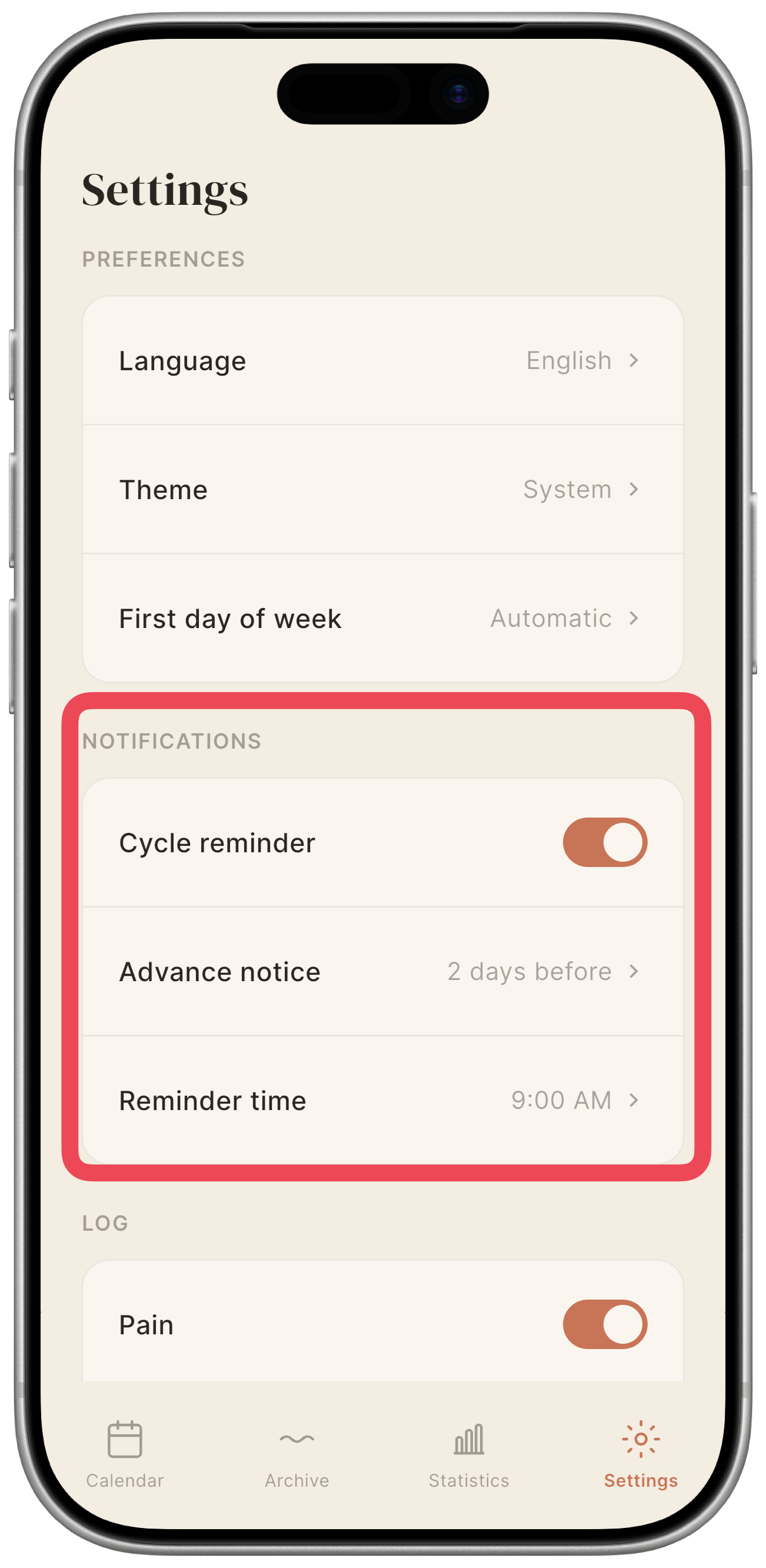
Mētra does not send notifications unless you turn them on. If you want a reminder, you enable it; if you do not, the app stays silent.
Cycle reminder: turns the local reminder on or off. When on, Mētra schedules a notification ahead of the next predicted cycle start.
If Mētra cannot schedule the notification — for example because notification permission is denied in the system Settings app, or the OS scheduler returns an error — the toggle returns to Off automatically. A brief message appears: “Couldn’t schedule notifications. Try again later.”
The two configuration rows are active only when the reminder is enabled.
Advance notice: how many days before the predicted start you want to receive the notification. Tap the row to open a wheel picker; the value updates automatically as you scroll. Accepts values from 1 to 7 days.
Reminder time: the hour and minute at which the notification fires on the chosen day. Minutes step in intervals of 5.
Note: on some devices with aggressive battery optimisation (Samsung, Xiaomi, OnePlus), reminders may arrive a few minutes late.
Log
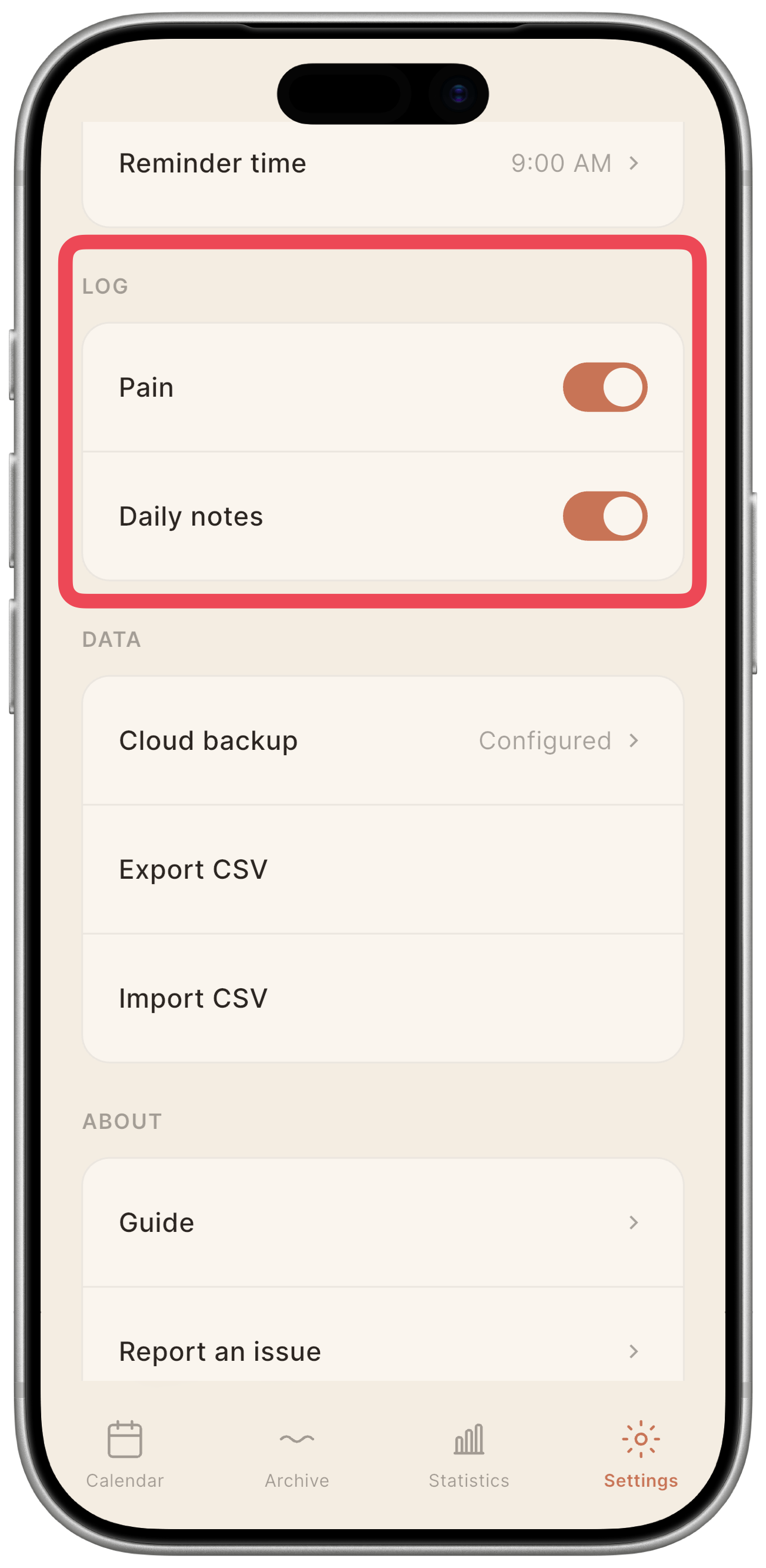
Not everyone tracks the same things. These two toggles decide which fields appear on the daily log screen.
Pain: when off, the pain level picker is hidden in the Today screen and in the day detail card. Entries already recorded remain in the database.
Daily notes: when off, the free-text notes field is hidden. Notes already saved remain in the database.
See Daily entry for a description of all log fields.
Data
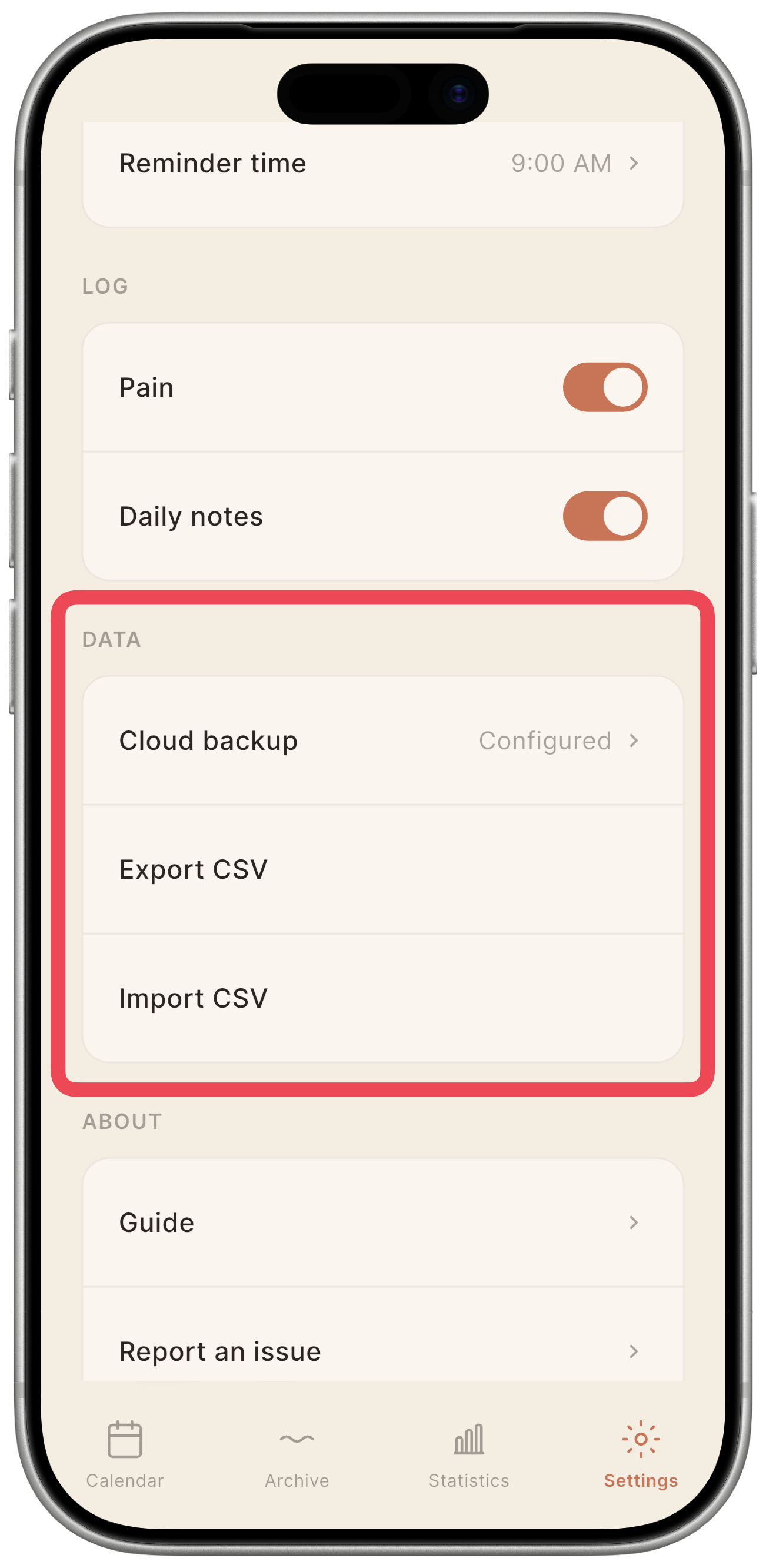
From here you decide whether and how your data moves: to an encrypted cloud backup, out as a CSV file, or in from a file you exported elsewhere.
Cloud backup: shows “Configured” when a cloud account is connected, “Not configured” otherwise. Tap the row to open the full backup screen. See Cloud backup.
Export CSV: generates a CSV file of all your entries and opens the system share sheet. Before sharing, Mētra shows a warning: the CSV file is not encrypted. See Import and export.
Import CSV: opens the file picker; after selecting a file, Mētra shows a dialog to choose how to handle existing data (three modes: replace all, overwrite by date, keep existing). See Import and export.
About
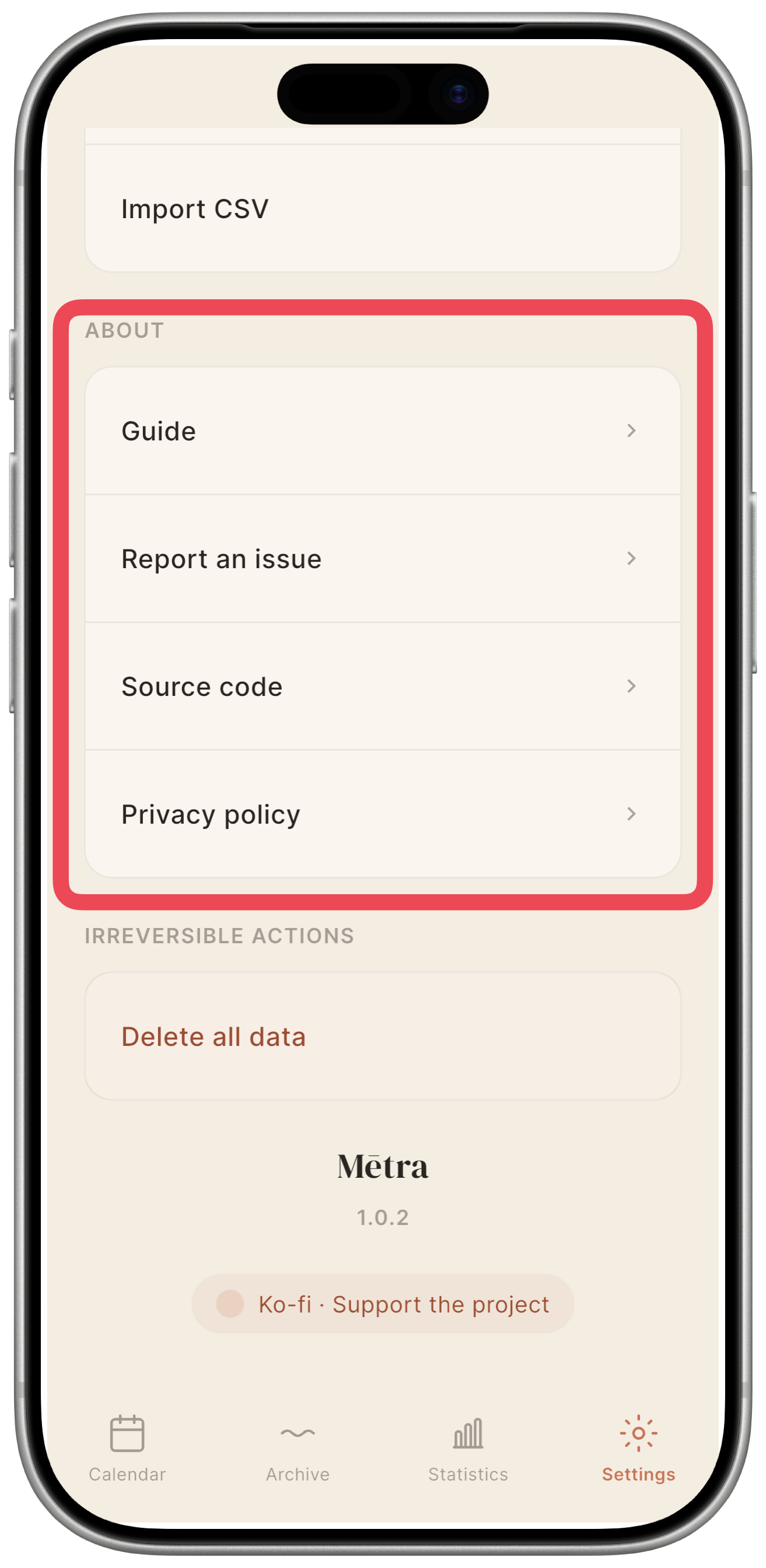
Where to find this documentation, the source code, and the statement on how data is handled.
Guide: opens this documentation in a browser.
Report an issue: opens a form in a browser to report an issue in the app.
Source code: opens the Mētra GitHub repository. The app is distributed under the GPL-3.0 licence: anyone can read, modify, and redistribute the source code.
Privacy policy: opens the privacy statement in a browser.
At the bottom of the screen you will find the app version number and a link to the Ko-fi page to support the project.
Irreversible actions
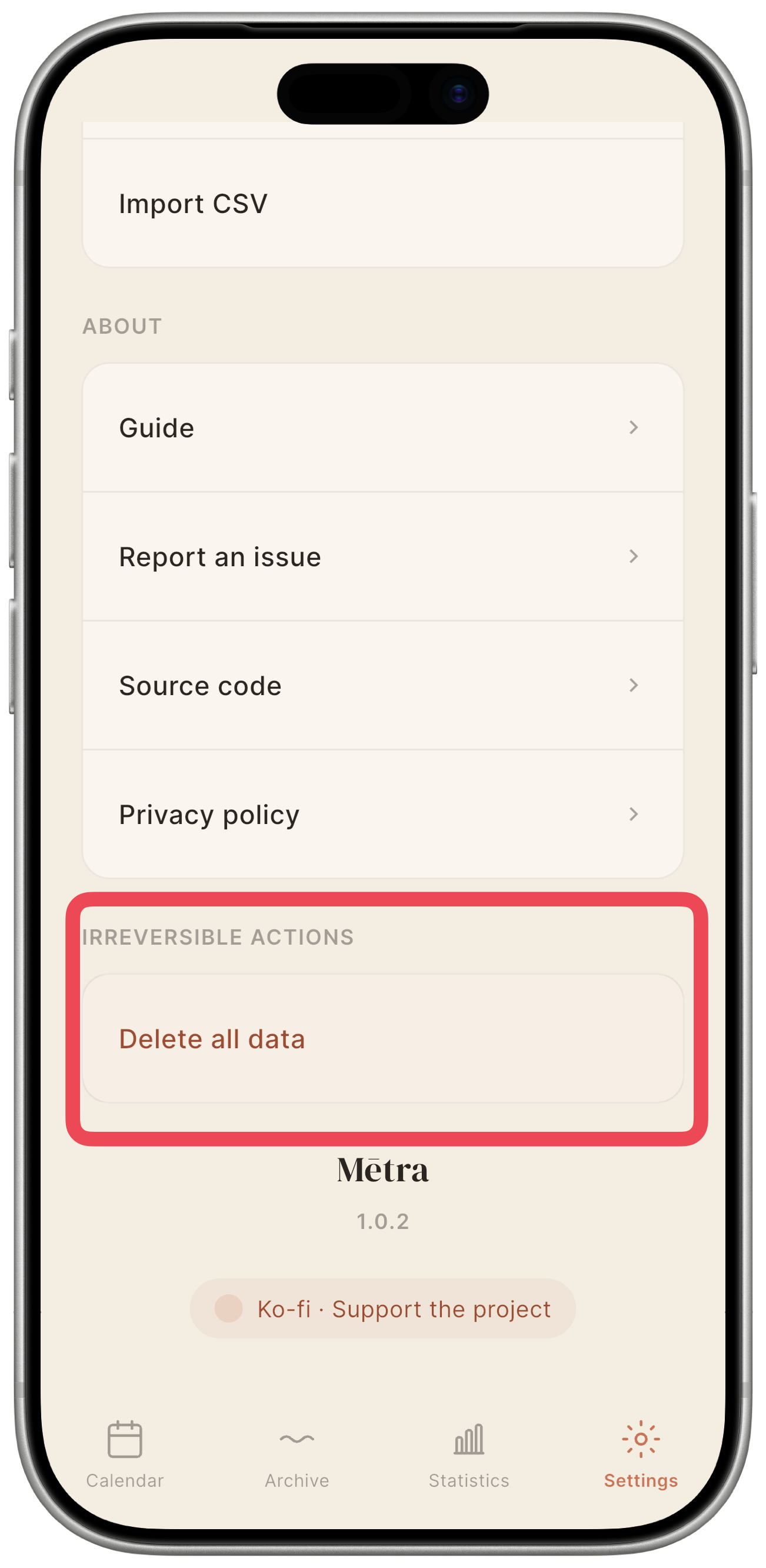
Delete all data: tap this row to open a confirmation dialog. If you confirm, Mētra wipes the local database: all daily entries and cycles are deleted. App settings remain unchanged.
⚠️ This action cannot be undone. If no CSV export or cloud backup has been made, there is no server that could recover the data. Once confirmed, the entries are gone.
The cloud backup is not deleted automatically. If you have a backup on Dropbox, Google Drive, or iCloud, you must remove it manually from that provider’s app or website.